
Chart API Overview
Deprecated featureThe current iteration of the Chart API will continue to be available for paying customers but will not be actively developed. Thank you for your understanding.
The Chart API is the easiest way to display wellness data from Human API in your app or portal. At a basic level, it is built to render graphs within iframe elements using URLs modeled after those of the main Data API. For example, the graph above was created with the following line of code:
<iframe src='https://chart.humanapi.co/v1/human/activities/summaries?chart_token=demo&start_date=2015-09-01&end_date=2015-09-30&type=bar'></iframe>The full range of available charts includes:
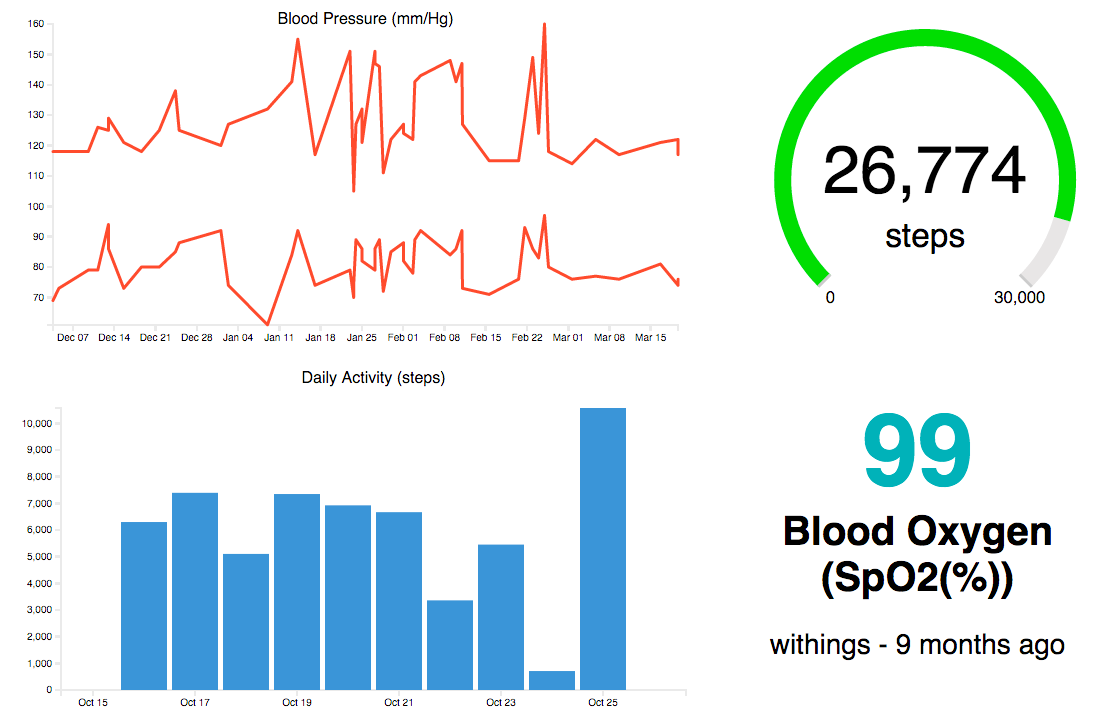
Line Graph | Bar Chart | Goal Gauge | Latest Value
To see live examples of these charts, head over to Customizing Charts.
Using the Chart API in your application requires two steps:
- Generating a temporary chart token for authentication
- Customizing the chart displayed
Let's get started with step one.
Generating a Chart Token
To render a chart in the client browser, you will need to pass a a temporary token to add to each iframe URL as the chart_token parameter. These temporary tokens can be retrieved from your server using the user's accessToken before the page containing charts loads. By using these temporary chart tokens, you can ensure that the user's accessToken remains secure on your server.
To test graphs, you can always use
demoas thechart_tokento use demo data.
Before loading a page that contains graphs from the Chart API, simply send a POST request to:
https://chart.humanapi.co/v1/tokens/chartwith the following payload:
{
  humanId: "52867cbede3155565f000a0d",
  clientId: "2e9574ecd415c99346879d07689ec1c732c11036",
  accessToken: "8836c122c0483eb193ac2dd121136931"
}| Property | Description |
|---|---|
humanId | Unique ID of the Human API user. |
clientId | Unique ID of your application container in the Developer Portal |
accessToken | Token used to query user data from the Data API. Obtained via Human Connect |
Ensure you set the
Content-Typeheader asapplication/json
In response you will get a payload that looks like this:
{
  humanId: "52867cbede3155565f000a0d",
  chartToken: "c82e2fdd4e6c91edded993019c59e531",
  expiresAt: "2015-10-27T21:48:23+00:00"
}
The chartToken you receive will be valid for 5 minutes. As a result of this short expiry time, it is best to retrieve a new chart token every time a page loads containing charts from the Chart API.
Adding a Chart to Your Page
- Add an
iframeelement to your page - Set iframe
srcto the appropriate url where:
- Base URL =
https://chart.humanapi.co - Path = the Data API Endpoint Path of the desired data type.
- Add the user's
chart_tokenas the first query parameter (or test withdemo) - Add
height,width, andborder:noneto your iframe's stlyle
<iframe src='https://chart.humanapi.co/v1/human/[type]?chart_token=[chartToken]'></iframe>
That's it! By default, this will render a line graph or the latest value of the resource.
There are numerous ways that you can customize the format of the rendered graph. Read the guide on Customizing Charts for more information.
Updated 8 months ago